Log stores and history
History reads past logs from Loki, Elasticsearch or OpenSearch, so you can still read the logs of pods that are gone.
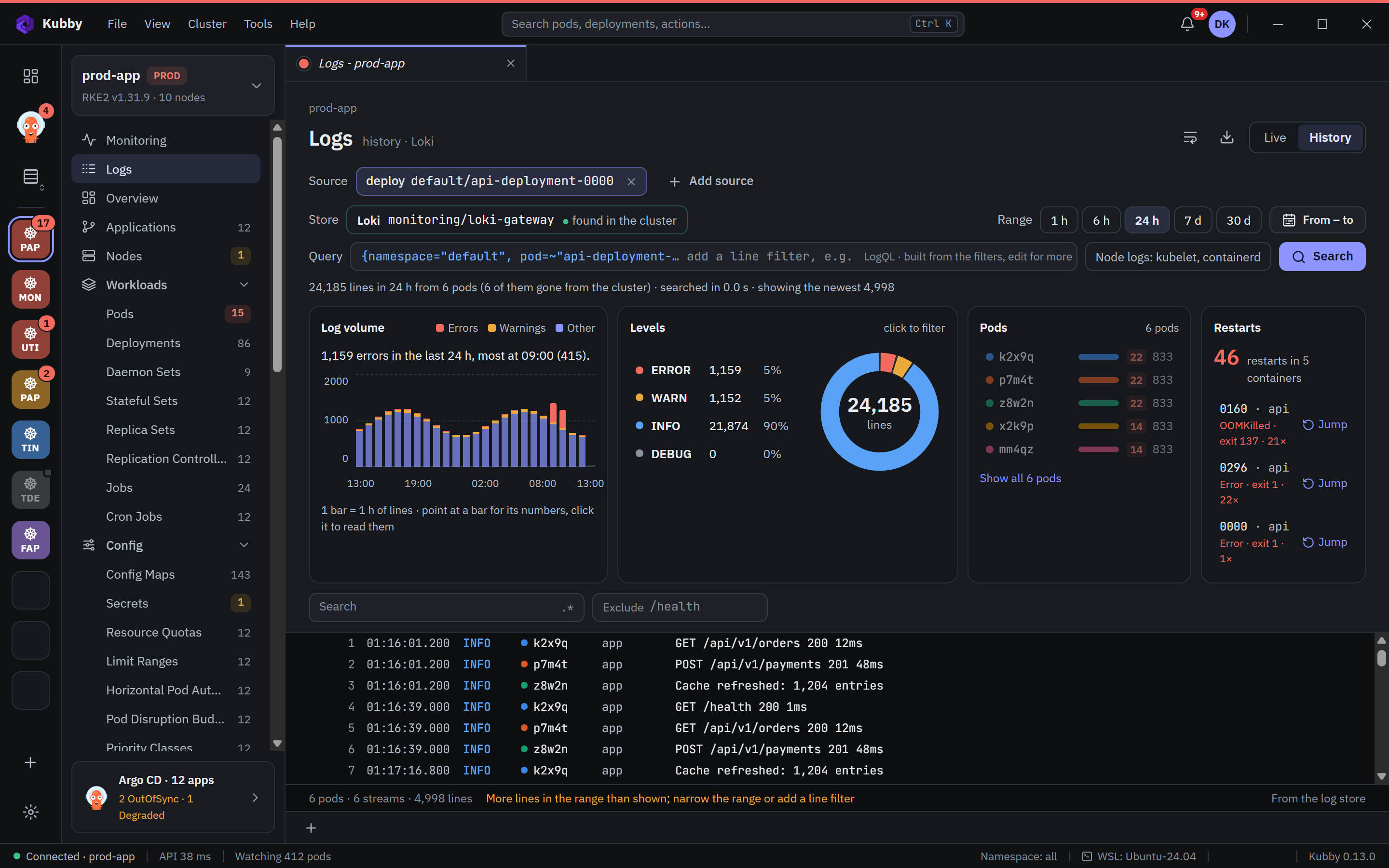
Reading history
On the Logs page, switch from Live to History. Your sources become a query on the store, with the same timeline, summary cards and filters as Live.
- Range: 1 h, 6 h, 24 h, 7 d, 30 d or a custom range. Click a bar in the log volume chart to narrow it.
- Query: built from your sources and filters (LogQL for Loki, Lucene for Elasticsearch and OpenSearch). Edit it for anything the filters do not cover.
- Node logs: kubelet, containerd adds the nodes' own logs when the store collects them.
- Gone pods: the info line counts the pods that no longer exist in the cluster.
When Kubernetes no longer has a container's crashed run, Read it from the log store opens History around the crash.
Stores found in the cluster
Kubby looks for Loki, Elasticsearch and OpenSearch services in the cluster and reads them through the Kubernetes API, with your permissions. A Loki gateway usually needs nothing more. For Elasticsearch and OpenSearch, set the index pattern, TLS and credentials in Preferences → Monitoring and logs, then press Test.
Central stores
If your logs go to one store for all clusters, add it as a central store for each cluster in Preferences → Monitoring and logs: its https address, the index, and the label that tells clusters apart (for example cluster=prod-app). Test shows how many lines it found and which fields it uses.
Monitoring can read a central Prometheus, Thanos, Mimir or VictoriaMetrics the same way, under Metrics.
Credentials
Kubby never stores a password, API key or token. You create a Kubernetes Secret that holds it, and Kubby keeps only the reference: namespace, name and key. It reads the Secret when it connects, with your permissions, and the value never reaches its settings or logs.
kubectl -n kubby-system create secret generic kubby-os-reader \
  --from-literal=username=kubby-reader --from-literal=password=<password>
No log store yet
A cluster without a store shows Set up logs and Use a central store in History. See Setting up logs and metrics.