Argo CD
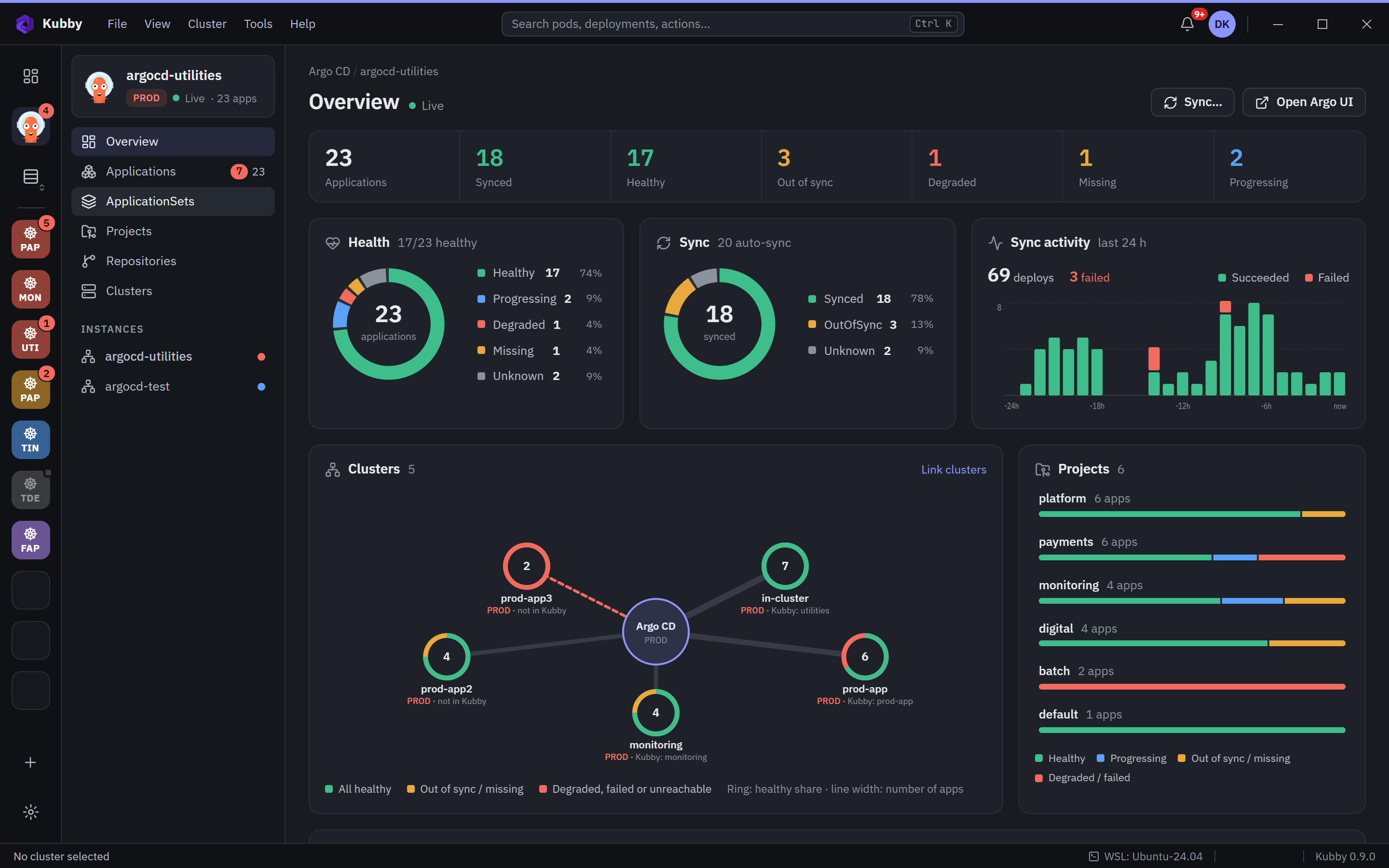
The Argo CD centre connects one or more Argo CD instances to Kubby: application health, sync status, resource tree, diff, history and operations.
Adding an Argo CD instance
- Click the Argo CD icon in the cluster bar and choose Add instance.
- Enter a name, the Argo CD address and an environment. Paste an API token.
- If Argo CD uses a private certificate, add the CA certificate.
- Test connection shows the version, the user and your permissions (view, sync, logs …). Add it.
Overview
Application counts, health and sync breakdown, deployment activity in the last 24 hours, a cluster map and projects. Applications that need attention are listed separately.
Application page
- Summary: source, destination, last sync, conditions.
- Resource tree: graph or list, with the health and sync status of each resource.
- Diff: the difference between Git and the cluster.
- History: revisions and rollback.
- Events and Logs.
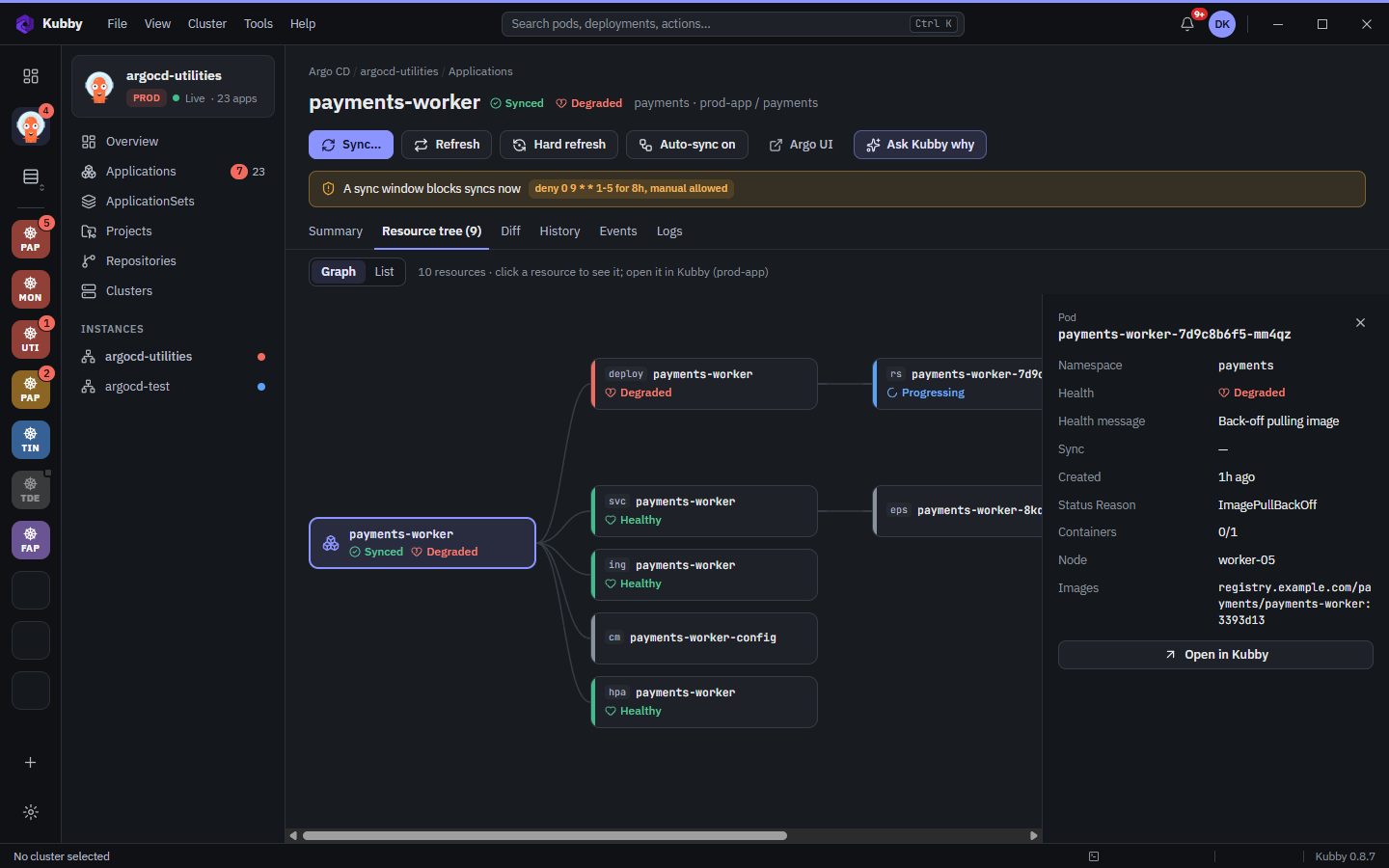
"Why Degraded?"
When an application is Degraded or a sync failed, Kubby finds the deepest resource in the tree where the error starts and shows the reason in the details panel: the health message, the resources the sync rejected, conditions and warnings. Click the resource to open it in Kubby.
Operations
Sync, refresh, hard refresh, rollback, terminating a running operation and turning auto-sync on or off. If sync windows block an operation, Kubby shows it. On PROD instances an operation is confirmed by typing the instance name.